Hi Friends, Some of us is frustrated with the below error message.

Android internal storage increase on stock ROM
So I, Subhomoy Bhattacharya just got a brand-new-in-a-box, dead cheap, Ideos S7 tablet -- my first android tablet, and my second android device. I brought my last device about 2 years ago, a G1 that I only kept for a week and sold it afterwards. I was thinking that at that time Android isn't ready yet for replacing my E71.
Back to the Ideos S7, mine is already preloaded with TRZ-mod-0.2 ROM, which is nice. However, I had some issue with wireless network. Whenever I disable my wifi, I would ge trouble activating it as it constantly disabled by itself. Thus, I decided to go back to available stock ROM. Long story short, I've chosen the Froyo 2.2.2 Sweden coded S7V100R001C63B110, and made myself comfortable with repeating Huawei's flashing process.
The firmware seems more stable, and does not have the wireless network activation/deactivation issue. Stock ROM lover anyone
However, the stock ROM doesn't have apps2d+ or whatever that was called, to extend the internal storage. 137MB of free space is really pity for such device. I couldn't run Data2Ext* script successfully, as the default shell /system/bin/sh doesn't seems to support square brackets on scripts conditional parts. Busybox 1.18 supports it, but somehow it would cause all the commands executed in the script to ran by Busybox, causing "applet not found" errors. The other option would be Link2SD, which could probably saved me 10+ hours of hacking. It had its drawback though, the current version on the market expects the extended internal tablet storage partition to reside on the external SD card. Some hacking to mount the internal SD partition works, but not sure whether it would got correctly mounted on boot.
Also, the most important thing: nothing feels better than looking at "Available space" on "Internal tablet storage" of 5.5GB
So here it is, the tutorial for extending the internal storage. Most of the information used are gathered from various sources, and rewritten here for your enjoyment!
Inspired by post of Adam Parnala | On 11, Mar 2012
 NOTHER EXPERT WAY TO DO IT WITHOUT LINK2SD
In the Post Ideos S7 is mentioned, The same can be done with any Android Device.
REQUIREMENTS:
=========
a) All hardware: Ideos S7 -- should work on Slim as well, data cable, charger, a living being..
b) Rooting -- I've used Gingerbreak from the market
c) Terminal Emulator -- Android Terminal Emulator works fine. Irritating blue background though.
d) Busybox -- 1.18 version is working fine
e) Root explorer -- Optionally used, for easier file editing and copying.
STEPS:
=========
0) Backup your data, as all data in internal storage will be lost!
---------
Well honestly I didn't do this as I got my contacts and mail synced on the internet. My S7 only got 5 days of lifetime so not much data there yet. Sorry no guide on how to do this
1) Partition the internal SD (or external SD card if you intend to do so).
---------
It is recommended to use a good class of memory card when using external SD card for the tablet storage partition.
There's possibly partitioning tools available for the architecture, but I did it with EASUS Partition Master on a Windows system. Mac OS's Disk Utiliy should work as well. Don't worry too much about the partition type, we'll reformat it later with busybox later anyway.
To partition the internal (or external) SD card, connect your data cable to your phone. When the USB connection notification came up, activate the USB storage mode. You don't need to install the Huawei S7 (or adb) drivers.
Fire up your partitioning application, and identify your storage. Delete (or) resize the existing FAT partition. Create another primary partition afterwards, with ext2 filesystem. ext3 and ext4 isn't supported in the stock ROM, so you probably have to either install a kernel module for the ext3,4 or replace your boot.img. Hey but that's not going to be a stock ROM
2) Root the device
---------
Install Gingerbreak from the market. Enable USB debugging in Settings -> Application -> Development, or else it won't work. Run Gingerbreak, root your device! The device will restart after successful process, and you are ready to modify your root filesystem.
3) Prepare the required tools
---------
You'll optionally need busybox to format and edit the files. Copy over the busybox binary file to /system/xbin/. The terminal login path would automatically points there so you can run busybox from anywhere inside the terminal.
4) Prepare the new data directory
---------
Fire up your terminal emulator. You'll need to be logged in as root to do the whole operation mentioned. Thus, type in:
Mount the new partition you've prepared on step (1). For internal
SD, it's going to be /dev/block/mmcblk0p2 device, or for external SD,
/dev/block/mmcblk1p2. You can also use other shorthand such as
/dev/block/vold/179:2. But for simplicity, I'll use mmcblk*p* throughout
the tutorial.
Prepare the mount point for your prepared data partition, and mount it. If it's currently mounted, unmount it first.
You can also format the partition now if you didn't specify the partition type during the partition creation.
Now mount the extended data partition.
We'll still need to be able to access the original data partition
now and later, so, prepare the mount point and mount it as well.
At this stage, you'll need to copy over all files inside the
original /data directory to your new sd directory. You'll also need to
make sure that the permissions isn't changed during the process. To do
this, just tar the entire original data directory to your new one.
The initialization for the new data directory mounting in the boot
process does not modifies the boot image's init.rc. Thus, it seems that
the initialization process is called after the radio initialization. I
can't get my GSM to work without this step. We'll need to symbolic-link
back the /system/sd/radio directory to the original internal storage
/data/radio directory. And remember that on the boot process, we'll need
to mount /system/internal *before* /system/sd.
After fiddling for several hours, I realized that the date and
time settings gets reset on each boot. Fixed by symlinking the
/data/date.time back to the internal storage.
5) Prepare the boot init script
---------
The Froyo boot process runs init.rc script, which is replaced by the boot.img when system boots. So we can't put our new /data directory mount commands there, unless we extract, unpack, modify, repack the boot.img. Ok so I decided that modifying boot.img will be the last step if I can't get it working without it. There must be an easier way!
Also, there aren't any rc.d, rc3.d, bla bla directory in which we can put our custom initialization script.
Luckily, there is a script that is called from the init.rc script during boot, which is stored on the root filesystem and can be customized. It's called /system/etc/install-recovery.sh. Thus, we'll put the initialization script there. If you already got a /system/etc/install-recovery.sh, you can just add our initialization script in the beginning of the. Alternatively, you can create a separate script to perform init, and call it from your modified /system/etc/install-recovery.sh.
There will be drawback, for example, it seems that the script is called after radio initialization, so we'll need to use the old /data/radio directory from the original /data directory, prepared on step (4).
So now you'll need to create (or copy) the install-recovery.sh script. You can use vi from the busybox, or easier is to just copy and paste the install-recovery.sh script provided in this post. In case you're a vi expert, fire up these commands. Don't forget to remount the root filesystem as rw first!
Write in the install-recovery.sh script:
Don't forget to set executable and readable attribute at least for root user, or else the system can't run the script!
So now you're ready to reboot the system. Double check the
install-recovery.sh script, make sure all commands mounts the partition
exactly to where you intend it.
6) Reboot your Ideos S7!
---------
Reboot and enjoy the trendemous increase on your internal tablet storage
WARNING!!! Do not attempt to perform factory data reset while running with /data mounted. It seems that S7 will format the /data partition as yaffs2, not sure as I haven't checked it. But it worth to try to change the install-recovery.sh script to mount the data partition as yaffs2, and then performing factory data reset.
EXAMPLE OF MY HUAWEI IDEOS S7
1/3 of the listed installed Apps used to full memory previously.


Now I'm describing some methods by which you can solve the issue & install more more apps in your Android device.
Android internal storage increase on stock ROM
So I, Subhomoy Bhattacharya just got a brand-new-in-a-box, dead cheap, Ideos S7 tablet -- my first android tablet, and my second android device. I brought my last device about 2 years ago, a G1 that I only kept for a week and sold it afterwards. I was thinking that at that time Android isn't ready yet for replacing my E71.
Back to the Ideos S7, mine is already preloaded with TRZ-mod-0.2 ROM, which is nice. However, I had some issue with wireless network. Whenever I disable my wifi, I would ge trouble activating it as it constantly disabled by itself. Thus, I decided to go back to available stock ROM. Long story short, I've chosen the Froyo 2.2.2 Sweden coded S7V100R001C63B110, and made myself comfortable with repeating Huawei's flashing process.
The firmware seems more stable, and does not have the wireless network activation/deactivation issue. Stock ROM lover anyone
However, the stock ROM doesn't have apps2d+ or whatever that was called, to extend the internal storage. 137MB of free space is really pity for such device. I couldn't run Data2Ext* script successfully, as the default shell /system/bin/sh doesn't seems to support square brackets on scripts conditional parts. Busybox 1.18 supports it, but somehow it would cause all the commands executed in the script to ran by Busybox, causing "applet not found" errors. The other option would be Link2SD, which could probably saved me 10+ hours of hacking. It had its drawback though, the current version on the market expects the extended internal tablet storage partition to reside on the external SD card. Some hacking to mount the internal SD partition works, but not sure whether it would got correctly mounted on boot.
Also, the most important thing: nothing feels better than looking at "Available space" on "Internal tablet storage" of 5.5GB
So here it is, the tutorial for extending the internal storage. Most of the information used are gathered from various sources, and rewritten here for your enjoyment!
Tutorial: A Guide to Link2SD for Android
Link2SD is an android application by Bulent Akpinar that lets you move apps and games to the 2nd partition of your SD card. Why do we have to use Link2SD when
Froyo and Gingerbread’s Native Apps2sd moves the files to the SD card?
Native apps2sd only moves the apk file of the application leaving other
files in internal memory thus you still have to manage your on-board
memory and limit your choice of apps because it will eat up your memory
and later on you cannot install any files anymore. Additionally, widgets
and some applications are not intended to be moved to the SD card.
However, Link2SD is only for root users because it is required that your
phone is rooted.
The idea behind the application is the same. But Link2SD has more relevant features which the Native Apps2sd lacked giving Android
1.5 and up users the chance to have a taste of what it’s like to have a
big phone memory. Additional features were added by the developer to
furher optimize the usage of android devices. By using Link2SD,
you can move not only the application file, but also the dalvic-cache
and libray files of the application. This means that data will be the
only one left to consume your internal memory thus installing
applications and games would be easier because you can install anything
you want without worrying about the famous low memory problem.
Furthermore, Link2sd covers all files even moving widgets and the
unmoveable applications to the 2nd partition of your SD card.
This is a step by step guide on how you can run Link2SD on your device. This tutorial will work for both stock and cutom ROMs. For ClockWorkMod Recovery users, you can check the other guide below. Follow all the instructions carefully to eliminate possible problems.
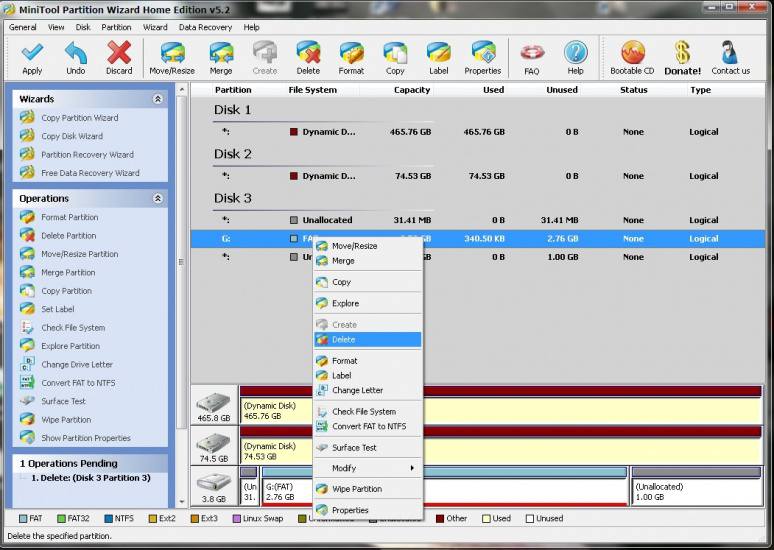
- First you have to download Mini Tool Partition Wizard Manager. You can download it HERE.
- Insert your SD card to a card reader and open it on your computer.
- Back up all your files to the computer because partitioning will wipe your data.
- Open Mini Tool in your computer. Locate your SD card (be careful in choosing and make sure not to choose the drive of your computer)
- Right click and choose Delete.
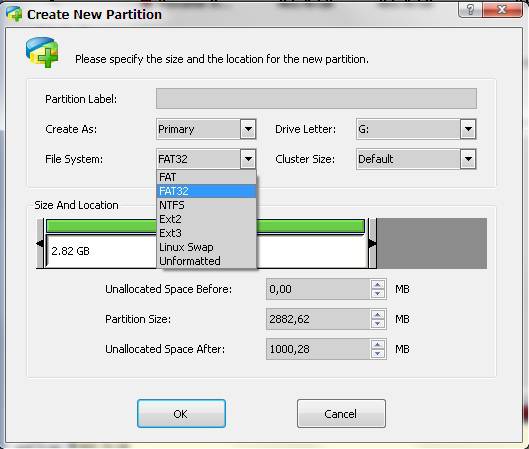
- Right click on it again and choose Create New. Create “FAT32″ partition (This is where all your media files will go. Be sure to make it bigger than the 2nd part)
- Select “Create as: PRIMARY”
- Next, create an ext2/ext3/ext4 partition (if you’re on stock ROM, choose ext2). This is where your apps will go. I suggest a value of 512Mb or 1Gb would be big enough but if you insist you can go as high as 2Gb.
- Select “Create As: PRIMARY” (make sure that it is both set to primary because it will not work if it is not set to primary)
- Click the “Apply” button on the top left corner and wait for it to finish the process. Done.
- Put back your SD card to your phone and switch it on.
- Download and install Link2sd from Google Play Store.
- Open Link2sd. You will be prompted to choose between ext2, ext3, ext4 and FAT32. Select ext2.
- It will say mount script created. Reboot your phone now.
- Open link2sd and if the message doesn’t show up, you succeded.
- Go to Link2sd>Settings>check the autolink (to automatically move apps upon installation)
- If you already have some apps, select “move to phone” then after moving select “Create Link” (be sure to check the three files: app, dalvic-cache and library files)
- To check your memory, select “Storage Info”. This will show you the
current state of your internal memory, FAT32, and ext2 partition.
- Now you’re done and ready to install vast amount of applications as you wish!


FOR CLOCKWORKMOD RECOVERY USERS ONLY( ALTERNATIVE METHOD)
NOTE: You can also use the instructions above. This guide will work on both stock and custom ROMs.
- Back up all your files to your computer. Partitioning wipes the files of your SD card.
- Go into recovery mode
- Select “Advanced”
- Select “Partition SD card”
- Choose your SD-ext size (if you’re using a 2Gb SD card, choose 512Mb. If your SD card is 4Gb or greater, you can choose 1024Mb)
- Select 0 swap
- Wait for the process to finish. Reboot.
- Download and install Link2SD from Google Play Store.
- Open Link2SD you will be prompted to choose between ext2, ext3, ext4 or FAT32. Choose ext4.
- Follow instructions number 14-20. DONE!
In the Post Ideos S7 is mentioned, The same can be done with any Android Device.
REQUIREMENTS:
=========
a) All hardware: Ideos S7 -- should work on Slim as well, data cable, charger, a living being..
b) Rooting -- I've used Gingerbreak from the market
c) Terminal Emulator -- Android Terminal Emulator works fine. Irritating blue background though.
d) Busybox -- 1.18 version is working fine
e) Root explorer -- Optionally used, for easier file editing and copying.
STEPS:
=========
0) Backup your data, as all data in internal storage will be lost!
---------
Well honestly I didn't do this as I got my contacts and mail synced on the internet. My S7 only got 5 days of lifetime so not much data there yet. Sorry no guide on how to do this
1) Partition the internal SD (or external SD card if you intend to do so).
---------
It is recommended to use a good class of memory card when using external SD card for the tablet storage partition.
There's possibly partitioning tools available for the architecture, but I did it with EASUS Partition Master on a Windows system. Mac OS's Disk Utiliy should work as well. Don't worry too much about the partition type, we'll reformat it later with busybox later anyway.
To partition the internal (or external) SD card, connect your data cable to your phone. When the USB connection notification came up, activate the USB storage mode. You don't need to install the Huawei S7 (or adb) drivers.
Fire up your partitioning application, and identify your storage. Delete (or) resize the existing FAT partition. Create another primary partition afterwards, with ext2 filesystem. ext3 and ext4 isn't supported in the stock ROM, so you probably have to either install a kernel module for the ext3,4 or replace your boot.img. Hey but that's not going to be a stock ROM
2) Root the device
---------
Install Gingerbreak from the market. Enable USB debugging in Settings -> Application -> Development, or else it won't work. Run Gingerbreak, root your device! The device will restart after successful process, and you are ready to modify your root filesystem.
3) Prepare the required tools
---------
You'll optionally need busybox to format and edit the files. Copy over the busybox binary file to /system/xbin/. The terminal login path would automatically points there so you can run busybox from anywhere inside the terminal.
4) Prepare the new data directory
---------
Fire up your terminal emulator. You'll need to be logged in as root to do the whole operation mentioned. Thus, type in:
Code:
su
Prepare the mount point for your prepared data partition, and mount it. If it's currently mounted, unmount it first.
Code:
umount /dev/block/mmcblk0p2
mkdir /system/sd
Code:
busybox mke2fs -m0 -b4096 /dev/block/mmcblk0p2
Code:
mount -t ext2 /dev/block/mmcblk0p2 /system/sd
Code:
mkdir /system/internal
mount -t yaffs2 /dev/block/mtdblock4 /system/internal
Code:
cd /system/internal
busybox tar -cvf /system/sd/old-data.tar *
cd /system/sd
busybox tar -xvf old-data.tar
busybox rm old-data.tar
Code:
cd /system/sd
busybox rm -rf radio
ln -s /system/internal/radio /system/sd/radio
Code:
cd /system/sd
busybox rm -rf date.time
ln -s /system/internal/date.time /system/sd/date.time
---------
The Froyo boot process runs init.rc script, which is replaced by the boot.img when system boots. So we can't put our new /data directory mount commands there, unless we extract, unpack, modify, repack the boot.img. Ok so I decided that modifying boot.img will be the last step if I can't get it working without it. There must be an easier way!
Also, there aren't any rc.d, rc3.d, bla bla directory in which we can put our custom initialization script.
Luckily, there is a script that is called from the init.rc script during boot, which is stored on the root filesystem and can be customized. It's called /system/etc/install-recovery.sh. Thus, we'll put the initialization script there. If you already got a /system/etc/install-recovery.sh, you can just add our initialization script in the beginning of the. Alternatively, you can create a separate script to perform init, and call it from your modified /system/etc/install-recovery.sh.
There will be drawback, for example, it seems that the script is called after radio initialization, so we'll need to use the old /data/radio directory from the original /data directory, prepared on step (4).
So now you'll need to create (or copy) the install-recovery.sh script. You can use vi from the busybox, or easier is to just copy and paste the install-recovery.sh script provided in this post. In case you're a vi expert, fire up these commands. Don't forget to remount the root filesystem as rw first!
Code:
busybox vi /system/etc/install-recovery.sh
Code:
#!/system/bin/sh
mount -t yaffs2 /dev/block/mtdblock4 /system/internal
mount -t ext2 /dev/block/mmcblk0p2 /system/sd
mount -o bind /system/sd /data
Code:
chmod 755 /system/etc/install-recovery.sh
6) Reboot your Ideos S7!
---------
Reboot and enjoy the trendemous increase on your internal tablet storage
WARNING!!! Do not attempt to perform factory data reset while running with /data mounted. It seems that S7 will format the /data partition as yaffs2, not sure as I haven't checked it. But it worth to try to change the install-recovery.sh script to mount the data partition as yaffs2, and then performing factory data reset.
EXAMPLE OF MY HUAWEI IDEOS S7
1/3 of the listed installed Apps used to full memory previously.


Hi there. Thanks for the nice guide. I did follow the instructions for my Ideos s7, and everything works great except that the tablet does not recognize the Fat32 partition of the SD card (I get a damaged SD card notification). I rechecked the SD card using minitool and the partition is correct. The ext2 partition is recognized just fine. Any clues? Thank you!
ReplyDeleteHi, This is a common issue. You need to make sure the FAT32 partition is the 1st part & EXT2 is the 2nd part. No 8mb blank partition should be there in the cards.
ReplyDeleteFAT32 partition should be from the bigining of the SD card, when it ends then the EXT2 Partition starts. Any unused 8MB partition will make the SD Cards Un-recognized. You cab use different partition software to avoid this issue... Thanks for writing..
Not sure how to do this. I followed your instructions step by step. Also, I already linked a bunch of my apps to the ext partition. Does this mean I have to reinstall of these apps if I wipe off and reformat the card? Thanks again for helping.
ReplyDeleteGingerbreak costs $15. Is there any other app to ROOT the S7 for free?
ReplyDeleteAlso: what were the values of your partitions for the 8gb SD card you own?
Could you please help me with those 2 questions? Thanks.